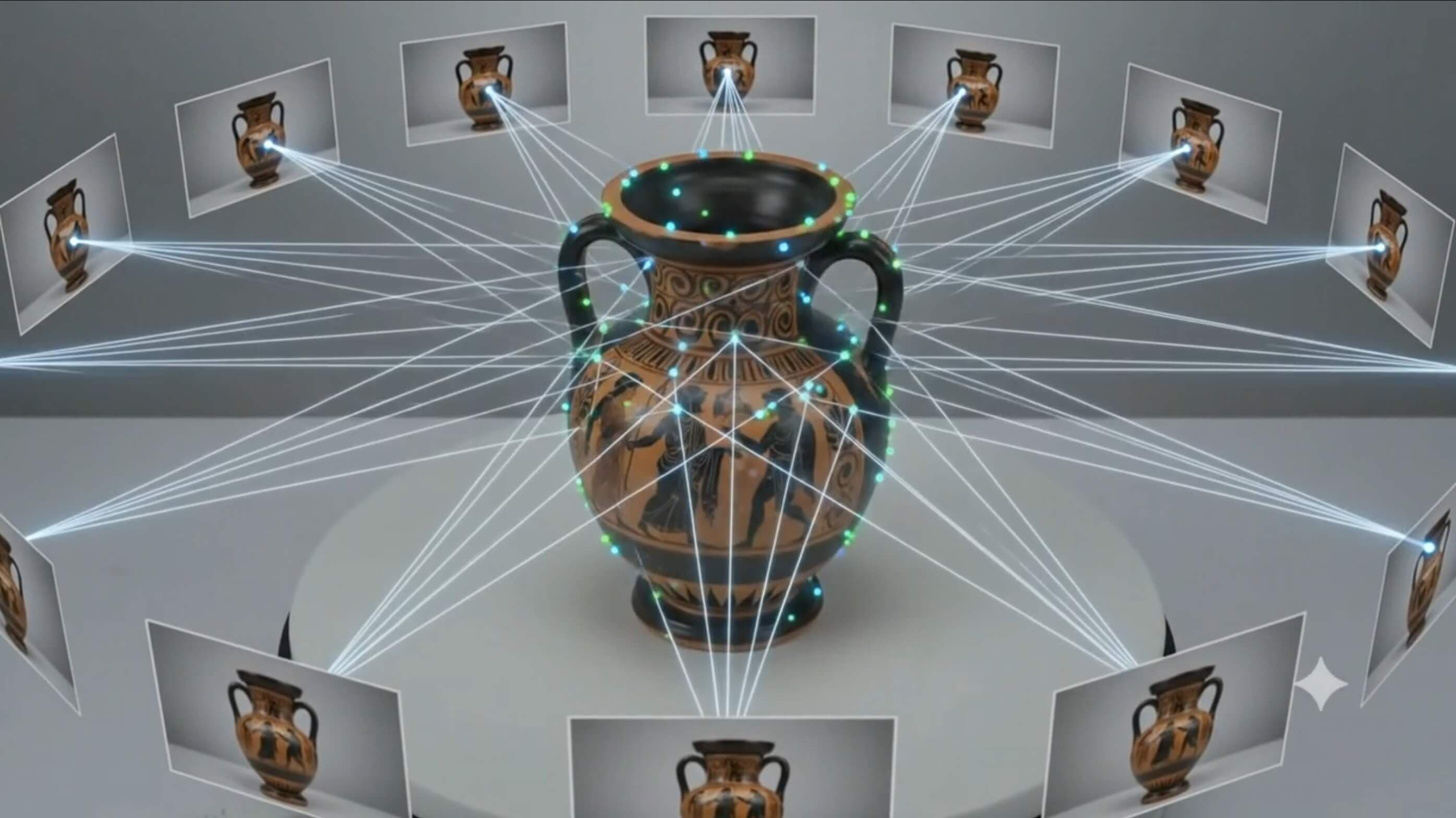
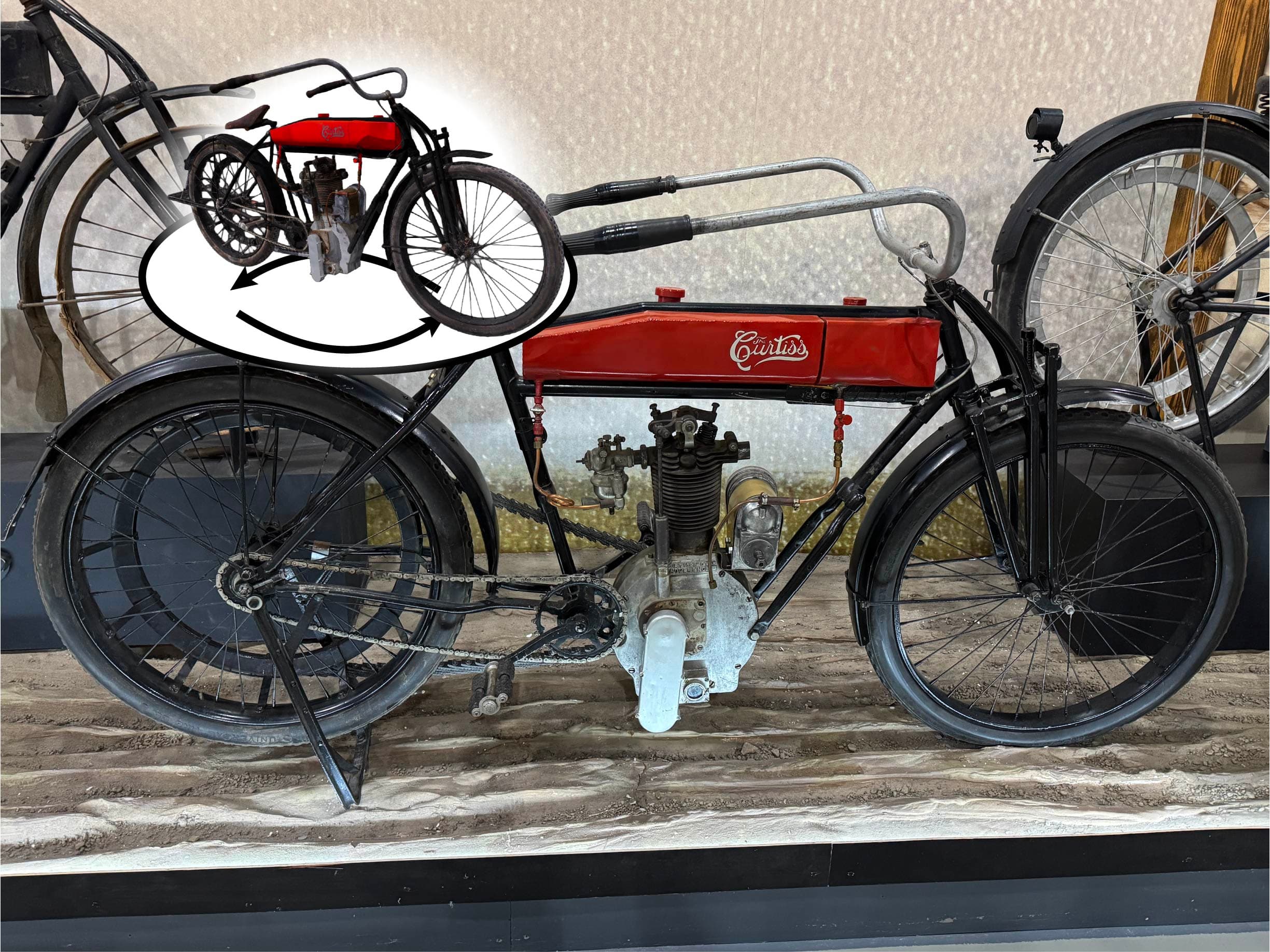
The Object Stories Techpack lets you publish interactive object stories, with 3D models, images and narrative, on your own web hosting. Setup is very simple: you only need the techpack delivery zip file and access to your website host dashboard.
The video above walks through the process from start to finish.
What you’ll need
- Techpack delivery zip file from your Object Stories delivery
- Access to your website host dashboard (e.g. cPanel, Plesk, or your host’s file manager)
How to upload
- In your host dashboard, open the file explorer (or file manager).
- Upload the techpack zip file.
- Extract the zip file.
- Navigate to the extracted folder, then go to site/index.html (i.e.
extracted-folder/site/index.html).
No WordPress dashboard, plugins, theme changes, or code are required. Once the files are in place, you can share your techpack via link or QR code so visitors can explore your object stories directly.
Need Help With Your Techpack?
Get in touch if you’d like support setting up your Object Stories Techpack or customizing it for your WordPress site.
Get Started Today